


Shopify speed optimization is a critical factor for any online store aiming to maximize conversions, enhance user experience, and boost revenue. Studies show that even a one-second delay in page load time can reduce conversions by up to 7%, while 53% of mobile users abandon sites that take longer than three seconds to load.
Fast-loading stores not only keep shoppers engaged but also improve SEO rankings, as Google prioritizes sites with better Core Web Vitals and smooth user experiences. Optimizing your Shopify store’s speed can lead to tangible business outcomes, from higher customer retention to increased sales.
For business owners starting their e-commerce journey, understanding the fundamentals of store setup can be crucial. Check out Shopify Store Setup: The Ultimate Guide for Business Owners for insights that complement your speed optimization efforts. In this article, we’ll dive deep into actionable strategies for Shopify site speed optimization, covering everything from theme selection to advanced performance tweaks, ensuring your store runs at peak efficiency.
Tips to Optimize Shopify Speed
Mastering Shopify site speed optimization requires a systematic approach that balances aesthetic appeal with technical efficiency. While the platform provides a robust infrastructure, the choices you make regarding media, apps, and code will ultimately determine your store’s velocity.
The following steps provide a detailed guide on how to audit, refine, and accelerate your storefront for maximum impact.
1. Choose a Lightweight, Performance-Optimized Theme
The theme you select serves as the skeleton of your online store. If the skeleton is heavy and cluttered with unnecessary features, no amount of post-launch optimization will make it truly fast. Many premium themes come “feature-rich,” but those features often rely on bloated libraries of JavaScript and CSS that load on every single page, whether you use them or not.
When selecting a theme, prioritize those built on the “Online Store 2.0” framework, such as Shopify’s own Dawn theme. These themes are designed to be modular and minimalist, loading only the assets required for the specific section being viewed. If your current theme is consistently dragging down your scores, it might be time to consult with professional Shopify development services to migrate to a leaner architecture or custom-build a solution tailored specifically to your performance needs.
2. Optimize and Compress Images for Speed
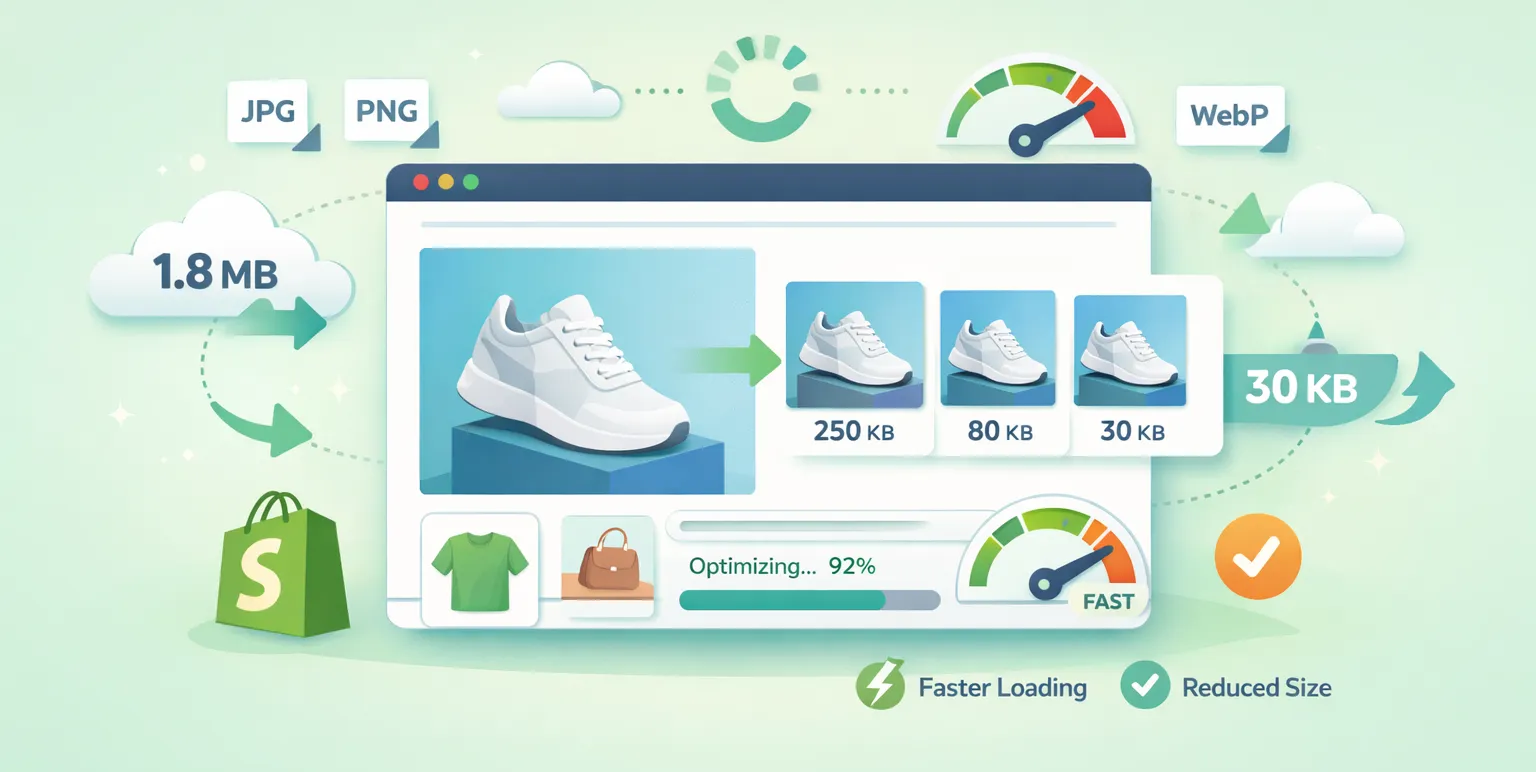
High-resolution imagery is essential for showcasing products, but it is often the primary culprit behind slow load times. To optimize Shopify speed, you must strike a balance between visual fidelity and file size. Large, uncompressed JPEG or PNG files can easily exceed 2MB each, which is catastrophic for mobile users on slower networks.
- Use WebP Format: Shopify now automatically serves images in WebP format to supported browsers, but you should still upload optimized files. WebP offers superior compression compared to JPEG, often reducing file sizes by over 30% without visible quality loss.
- Manual Compression: Before uploading, run your images through tools like TinyPNG or Squoosh to remove unnecessary metadata.
- Correct Dimensions: Never upload a 4000px wide image for a 400px wide thumbnail. Ensure the image dimensions match the container they will occupy on the storefront.
3. Minimize and Defer JavaScript
JavaScript is often the heaviest part of a modern website. While it provides interactivity, it is also “render-blocking,” meaning the browser stops loading the visual parts of your page until the script is fully downloaded and executed.
To improve performance, you should identify non-essential scripts—such as those for chat widgets or review carousels—and apply the defer or async attribute.
- Defer: Tells the browser to continue parsing the HTML and only execute the script after the page has finished loading.
- Async: Allows the script to download in the background while the page loads, executing as soon as the download is complete.
4. Optimize CSS Delivery
Similar to JavaScript, CSS can block the rendering of your page. If your stylesheet is massive, the user will stare at a blank white screen while the browser processes the design instructions. Effective Shopify site speed optimization involves “Inlining Critical CSS.” This technique places the CSS required for the “above-the-fold” content (the part of the page visible without scrolling) directly into the HTML head.
The remaining “non-critical” CSS should be loaded asynchronously. This ensures that the user sees a styled page almost instantly, while the rest of the design details load quietly in the background.
5. Audit and Remove Unused Apps and Code
Every app you install on Shopify adds a snippet of code to your theme.liquid file or injects scripts via an API. Over time, these scripts accumulate—a phenomenon known as “app bloat.” Even if you delete an app, it often leaves behind “ghost code” or orphaned snippets that continue to send requests to external servers, slowing down your Shopify page speed optimization efforts.
Perform a monthly app audit. Ask yourself if the functionality provided by an app is worth the speed trade-off. In many cases, a few lines of custom Liquid code can replace a heavy third-party app. After uninstalling an app, manually check your theme files for any remaining script tags or liquid includes that are no longer needed.

6. Limit Third-Party Scripts and Tracking Codes
Marketing teams love tracking pixels—Facebook, Google Analytics, Pinterest, TikTok, and Hotjar all want a piece of your page load budget. Each of these scripts requires a “DNS lookup” and a handshake with a third-party server, which adds significant latency.
To mitigate this, use Shopify Pixels or a Tag Manager to centralize and control when these scripts fire. Avoid “hard-coding” every tracking pixel directly into your theme. By managing them through a single container, you can ensure they don’t all compete for resources the moment a user hits your homepage.
7. Improve Core Web Vitals Metrics
Google’s Core Web Vitals are a set of specific factors that Google considers important in a webpage’s overall user experience. Focusing on these is a key part of Shopify performance optimization:
- LCP (Largest Contentful Paint): Measures how long it takes for the largest visual element (usually a hero image) to appear. Aim for under 2.5 seconds.
- INP (Interaction to Next Paint): Measures how responsive your page is to user input (like clicking a button). Target 200ms or less.
- CLS (Cumulative Layout Shift): Measures visual stability. If elements “jump” around while loading, your CLS score will suffer. Use fixed dimensions for image containers to prevent this.
8. Leverage Shopify’s Built-In Performance Features
Shopify provides several native tools that many merchants overlook. The platform uses a world-class Content Delivery Network (CDN) powered by Cloudflare, which automatically caches your static assets on servers located physically close to your customers.
Ensure you are utilizing Shopify’s native image filters in your Liquid code to serve responsive images. For example, using the srcset attribute allows the browser to choose the appropriately sized image based on the user’s screen resolution, preventing mobile devices from downloading massive desktop-sized files.
9. Optimize Product and Collection Pages
Collection pages with dozens of products can become incredibly sluggish. Implement “Lazy Loading” for product images, which ensures that only the images currently in the viewport are loaded. As the user scrolls, the next set of images is fetched.
For product pages, avoid excessive “Related Product” widgets that perform complex database queries on the fly. Instead, use Shopify’s Search & Discovery app, which is optimized to handle these requests efficiently without compromising Shopify speed optimization.

10. Enable Browser Caching
While Shopify handles much of the server-side caching, you can influence how the user’s browser stores your site’s assets. Browser caching allows a returning visitor’s computer to store files like your logo, CSS, and certain scripts locally. This means they don’t have to download them again on their second visit, making the site feel almost instantaneous. Ensure your theme is configured with appropriate “Cache-Control” headers for static resources.
11. Reduce Redirects and Fix Broken Links
Every time a URL redirects to another (e.g., from an old product page to a new one), the browser has to wait for a new HTTP request to complete. While a single redirect is negligible, a “redirect chain” (A leads to B, which leads to C) can add seconds to your load time.
Regularly scan your store for 404 errors (broken links). Not only do these frustrate users, but they also waste “crawl budget” and can negatively impact your Shopify page speed optimization score.
12. Use Fast, Clean Fonts
Custom web fonts are beautiful but heavy. If you use five different weights of a custom Google Font, the browser has to download five separate files before it can render your text properly. This often leads to a “Flash of Unstyled Text” (FOUT) where the text changes font suddenly after loading.
To optimize Shopify speed, stick to two font families at most. Even better, consider using “System Fonts” (like Arial, Helvetica, or San Francisco). These are already installed on the user’s device, requiring zero download time.
13. Implement Lazy Loading for Videos and Media
Video content is excellent for conversion but terrible for speed if not handled correctly. Never upload large video files directly to your Shopify media library to be played via an HTML5 <video> tag without optimization. Instead, host videos on platforms like YouTube or Vimeo and use a “Lite Embed.” A lite embed only loads the video player when the user clicks the play button, preventing the heavy video scripts from slowing down the initial page load.
14. Optimize Homepage Layout and Structure
The homepage is often the heaviest page on a Shopify store. Merchants frequently clutter it with hero sliders, multiple collection grids, Instagram feeds, and featured blog posts. Each of these sections adds HTTP requests.
Streamline your homepage by focusing on a single, clear “Call to Action” (CTA). Replace auto-playing sliders with a single, high-impact hero image. Sliders are notoriously bad for both SEO and performance, as they require large libraries like jQuery or Slick to function.
15. Regularly Test and Monitor Performance
Optimization is not a “set it and forget it” task. As you add new products, install new apps, or change your design, your speed will fluctuate. Use tools like Google PageSpeed Insights, GTmetrix, and Shopify’s built-in Online Store Speed Report to monitor your progress.
A consistent monitoring schedule ensures that you catch performance regressions before they impact your bottom line. Aim to run a full audit after every major theme update or app installation.
For a deeper understanding of building and structuring your Shopify store for maximum efficiency, refer to the comprehensive guide on setting up your Shopify store for success. It complements speed optimization by ensuring your site is well-organized from the start.
Summary of Shopify Speed Optimization
Investing in Shopify speed optimization services is not just a technical improvement; it’s a revenue strategy. Fast-loading stores enhance user experience, improve Core Web Vitals, and increase conversions, directly impacting your bottom line. From selecting a lightweight theme to optimizing images, scripts, and media, every optimization step contributes to smoother, faster, and more profitable online shopping experiences.
Consistent monitoring, testing, and applying best practices in Shopify performance optimization ensures your store remains competitive in the fast-paced e-commerce landscape. By prioritizing speed, merchants can secure better SEO rankings, higher customer satisfaction, and stronger revenue growth, making Shopify speed optimization a cornerstone of successful online business management.